Robot Overlord 3
How to record and play back a robot arm motion
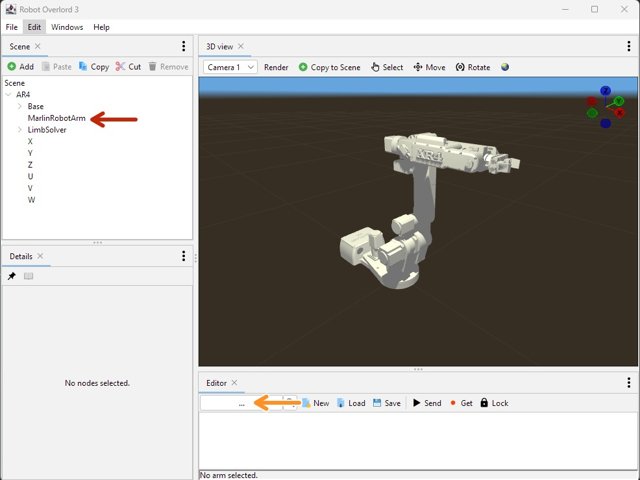
Recording a robot arm while you move it live is a great way to "rough out" a motion for later refinement. In this guide you'll learn how to prepare, run, and stop live recordings. You'll also learn how to play them back.
Step 1 Load a robot arm
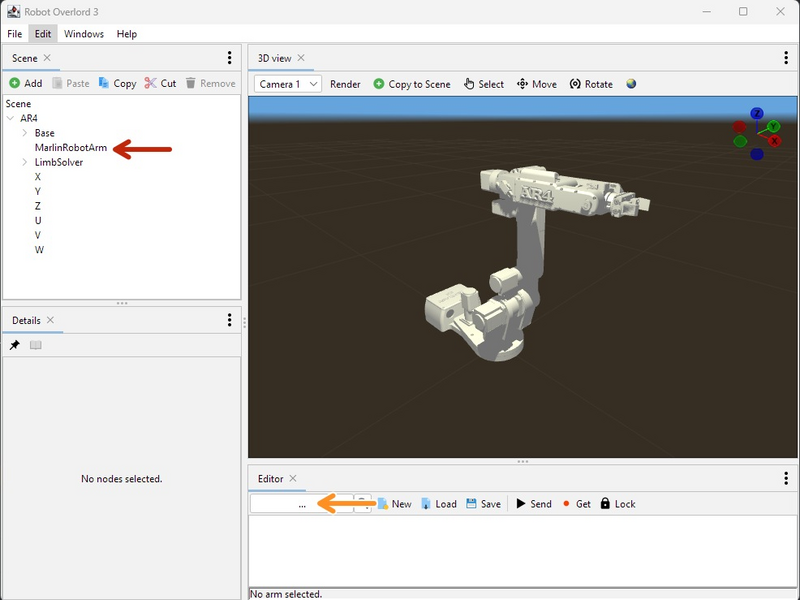
Click the large image to open full size.
Get your favorite robot arm file. Here is an AR4 is used as an example.
Extract the ZIP file. Inside it will be an AR4-3.RO file. Open the file in Robot Overlord.
Open the Editor tab: Click Windows > Editor, and drag the tab to arrange it where you want.
Tell the Editor which robot you're using: either....
...click the Editor "..." button and select MarlinRobotArm OR
...drag MarlinRobotArm from the Scene tab onto the "..." button.
Now you're ready to start recording.
Step 2 Moving with Forward Kinematics
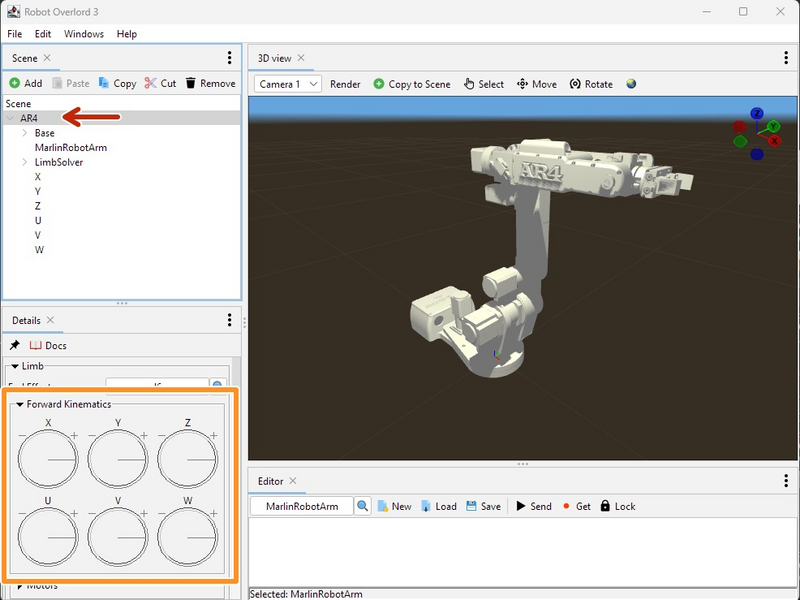
Click the large image to open full size.
Select the Limb Node. In this case it is called AR4.
Move each joint: turn the dials by either clicking and dragging (large moves) or rolling the middle mouse button (fine moves). This is Forward Kinematics.
- Note:
Do this while recording is on and gcode will be added to the editor window every time the interval elapses.
Step 3 Moving with Inverse Kinematics
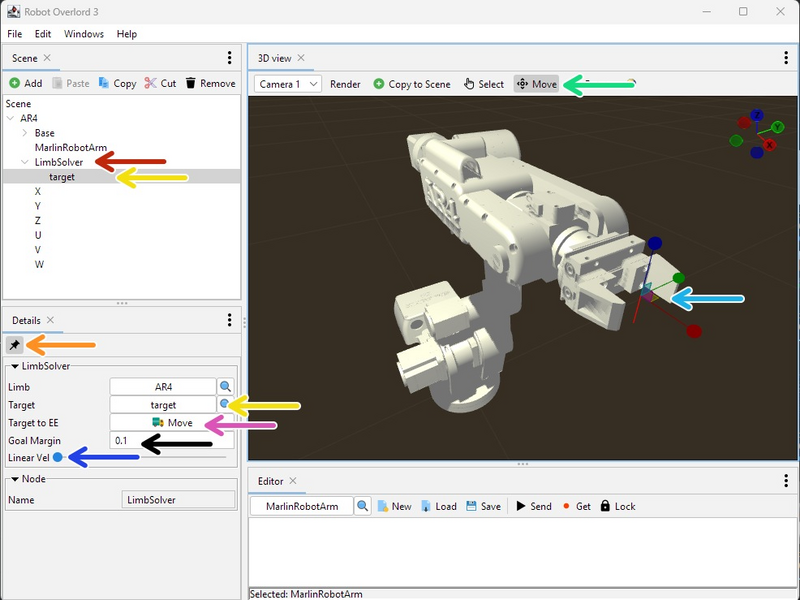
Click the large image to open full size.
Select the LimbSolver
Pin it, if you like.
Select the target (two different ways)
Toggle Move mode
Push and pull the gizmo.
Raise the maximum linear velocity. The arm will start moving towards the target. You can move the target in real time like a rubber band.
The Target To EE button will move the target to the End Effector, instantly stopping the arm.
The Goal Margin button controls how close the arm wants to get to the target. It is a sum of linear distance and rotation degrees.
Step 4 Playback
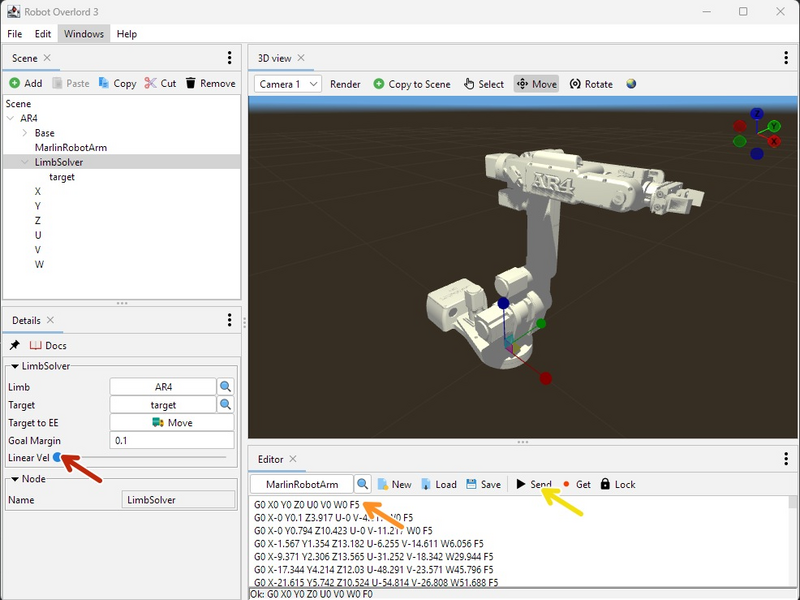
Click the large image to open full size.
- Note:
I have created a short recording in the Editor tab using the previous steps.
- Note:
Make sure to stop the recording and turn off the Get + Lock
Set the LimbSolver > Linear Velocity to zero or the arm will keep trying to follow the target after every step of the recording.
Select the first line in the recording and press Send. Notice the arm jumps to the Forward Kinematic values in the gcode. Notice the caret moves to the next line.
Press Send until you are satisfied you have walked through the entire recording.
Edit and remix to taste. Bon appetit!
Complete
Now you can record and play back simple recordings of your robot arm. Huzzah!