Robot Overlord 3
0. How to Install Robot Overlord 3
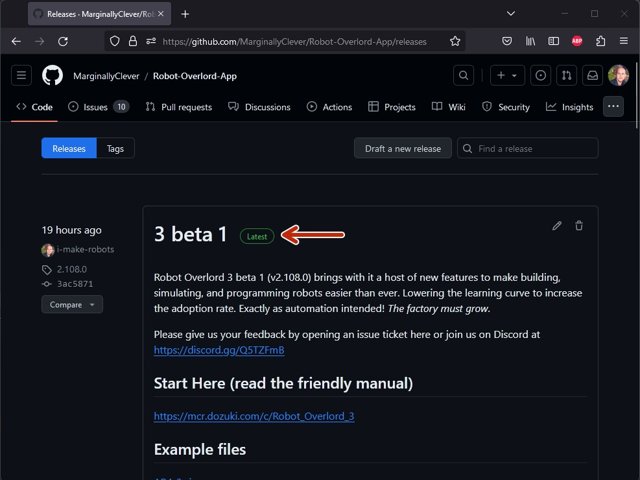
Downloading is quick and easy. Learn what to do about Apple and Windows security warnings and get your first glimpse of the app.
Step 1 Download
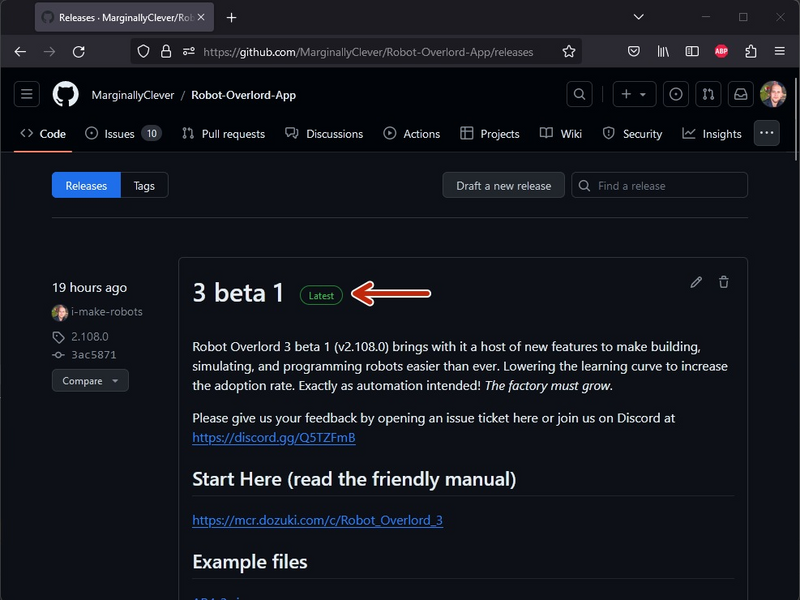
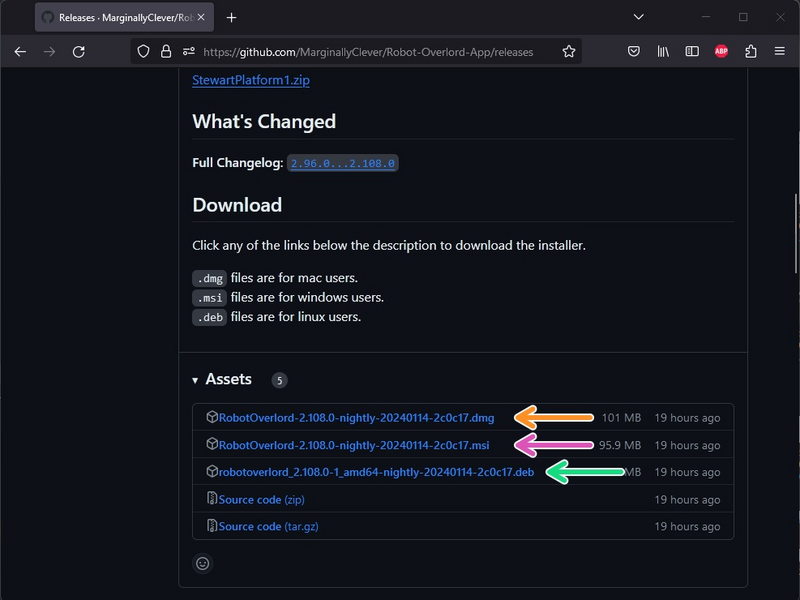
Click the large image to open full size.
- Note:
Download and install Java if you do not have it already.
Download the application. The latest release is available at https://github.com/MarginallyClever/Robo... . There are versions for Windows, OSX, and Linux. Look for the latest version.
The .dmg file is the installer for OSX.
The .msi file is the installer for Windows.
The .deb file is the installer for Debian.
Step 2 Apple says that the file is damaged.
Open a Terminal and type sudo spctl --master-disable. You will be asked for the administrator password.
After that go to settings > security > and accept from all publishers.
It should now run without complaint.
Step 3 Windows security warning
Windows says the publisher is unknown.
Choose more info > run anyways.
Step 4 First time
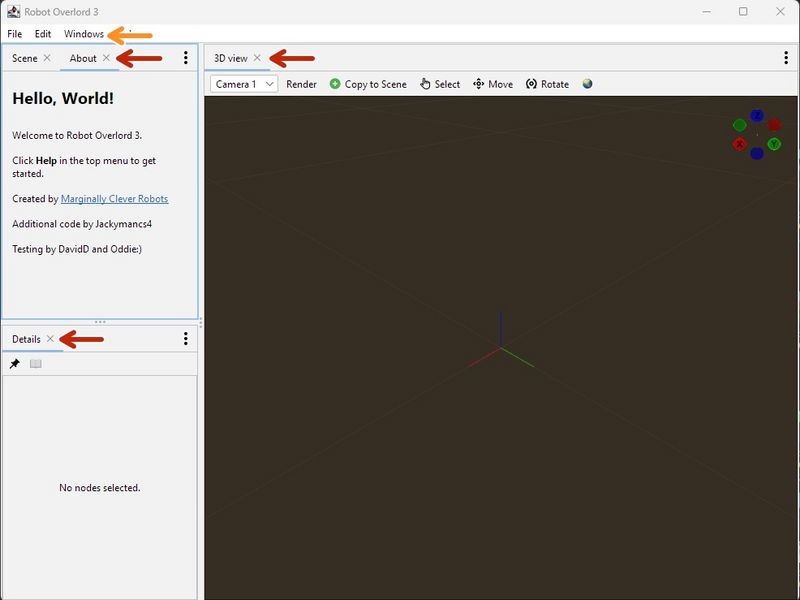
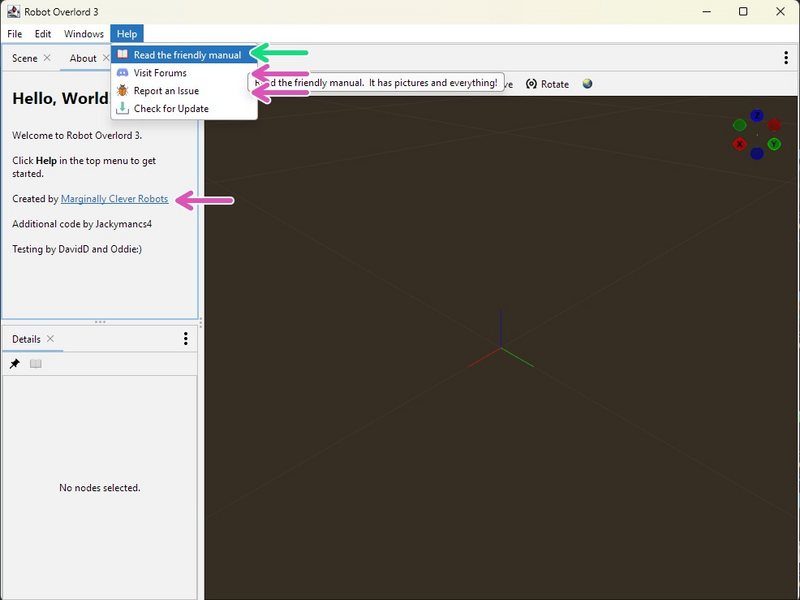
Click the large image to open full size.
Congratulations! You're up and running.
Notice the system of dockable windows. They can be resized, rearranged, removed, and reopened. Try closing the About tab.
Even more windows are available from Windows menu. Try opening the About tab again.
Help > Read the Friendly Manual will return to this manual.
And even more ways to reach other people for help.
Complete
Now that you have installed and run the app,
try