Makelangelo 5 & legacy
[old] How to upload Marlin firmware from Windows
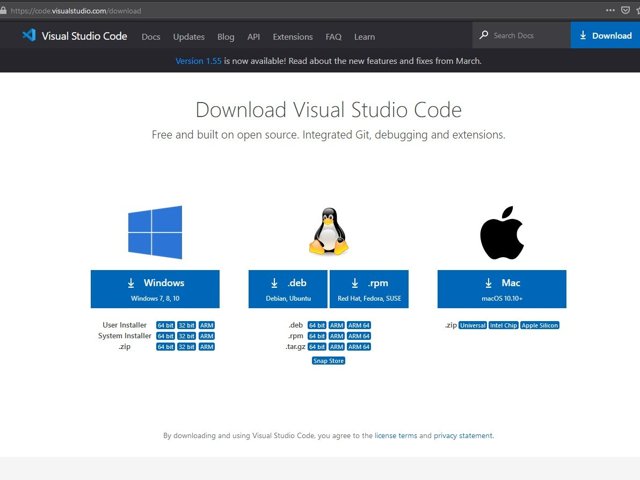
As of 2021 Makelangelo-firmware is now built and uploaded with PlatformIO. These instructions will show you how to build & upload from any windows-based device running VSCode.
Step 1 Install Apps and open project
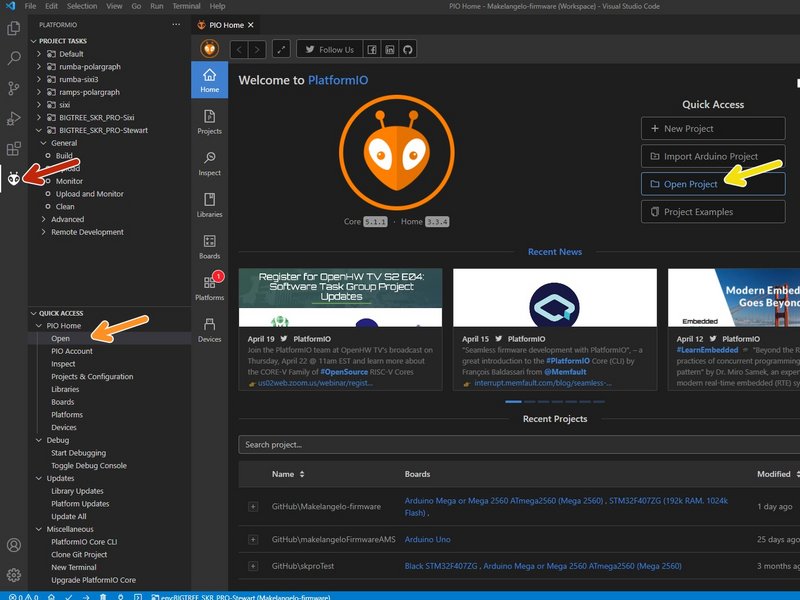
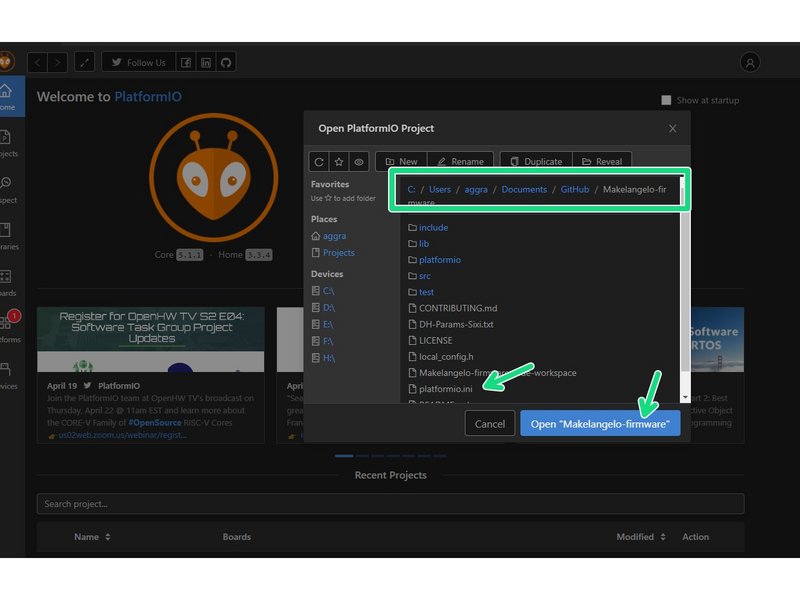
Click the large image to open full size.
Install Github Desktop (or your favorite flavor of git)
Clone the Marlin firmware repository. I will clone to local directory ~/Marlin/
Click on the PlatformIO plugin
Click Quick Access PIO Home > Open
Click Open Project and then
Open your copy of folder ~/Marlin/
Step 2 Default versions
Click the large image to open full size.
- Note:
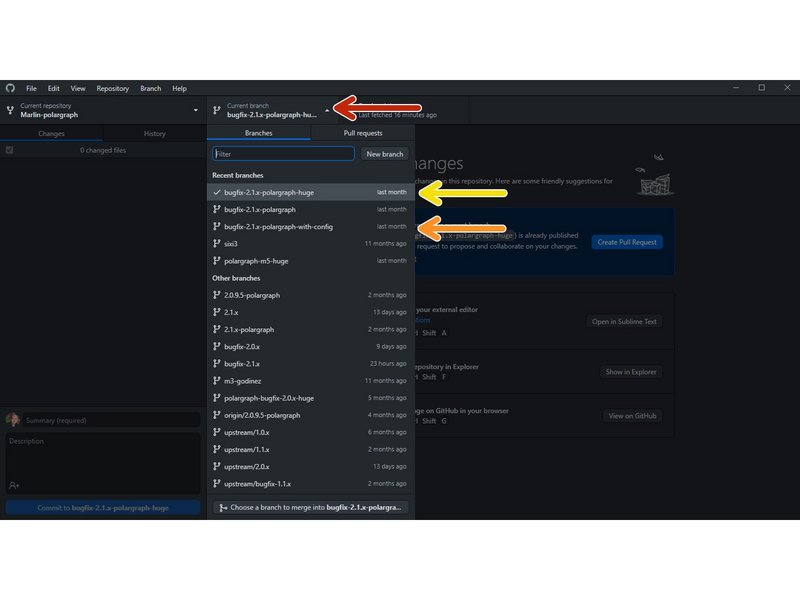
The code from Github has several "branches". Each branch is pre-made for a different type of machine.
Click here to change the current branch.
bugfix-2.1.x-polargraph-with-config is the branch installed by default on all Makleangelo 5 robots.
bugfix-2.1.x-polargraph-huge is the custom version for Huge machines. Out of the box a Huge might still have the 5 branch installed.
Step 3
Click the large image to open full size.
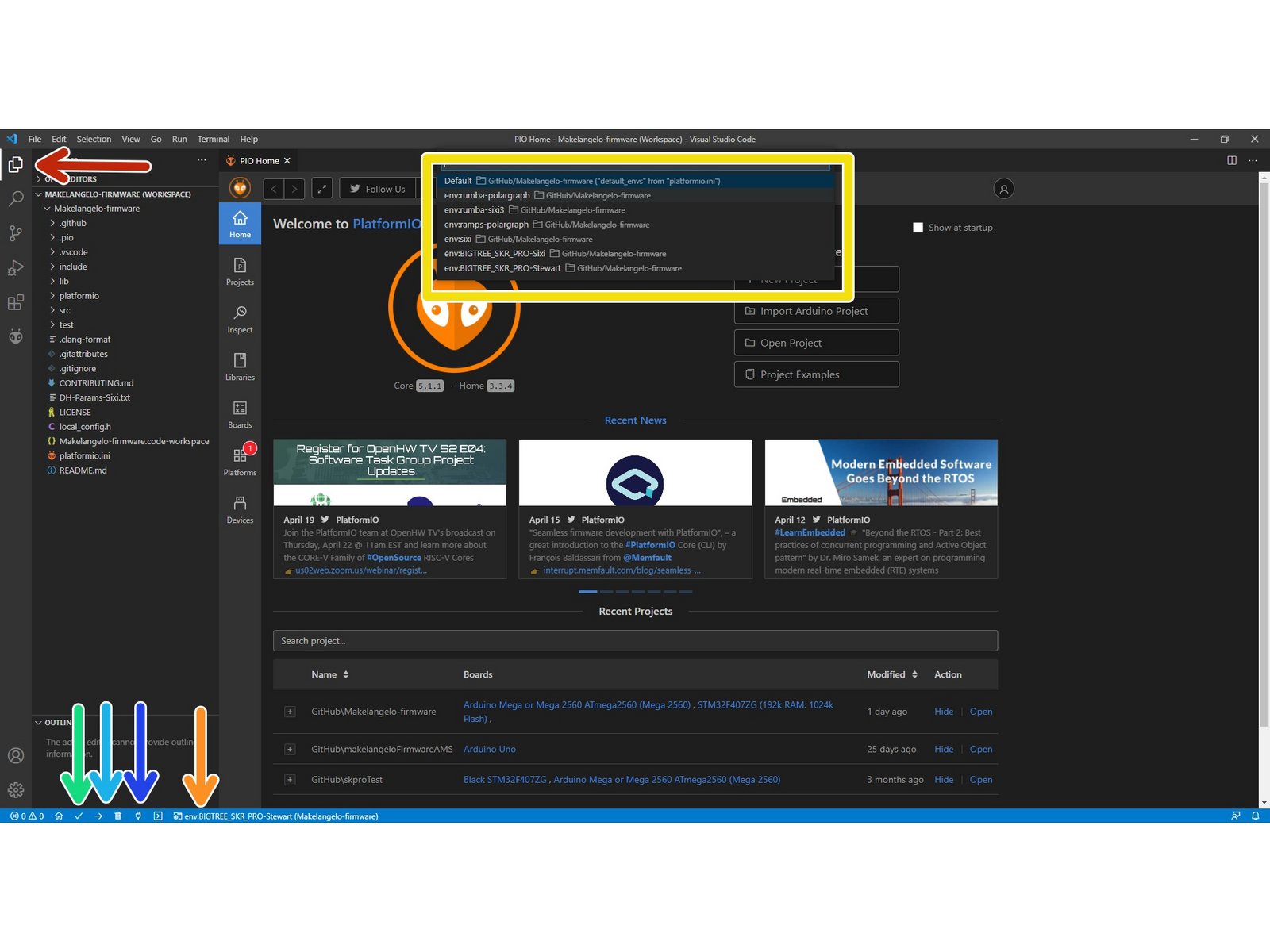
Click on "Explorer"
Click on "Switch PlatformIO Environment"
Choose your environment. The default env for Makelangelo robots is env:mega2560.
Compile your code to make sure there are no errors.
If your board allows and is connected, upload your code.
If your board communicates over serial USB, connect here.
Step 4 Customizing the firmware
Click the large image to open full size.
- Note:
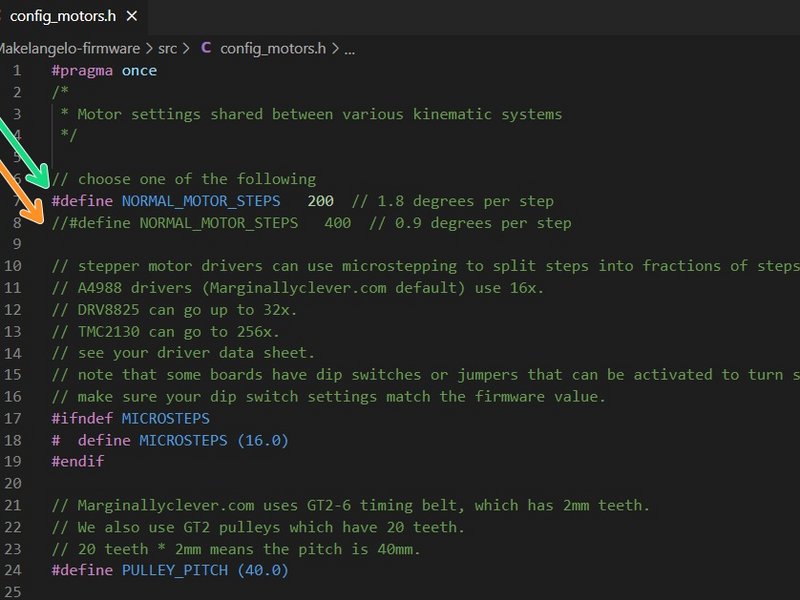
By default the firmware is setup for Makelangelo 5 polargraph robots.
Please use Friday Facts 4 to customize your firmware for other hardware, etc.
Once this is set correctly, upload the firmware again.
Step 5 Factory reset
Click the large image to open full size.
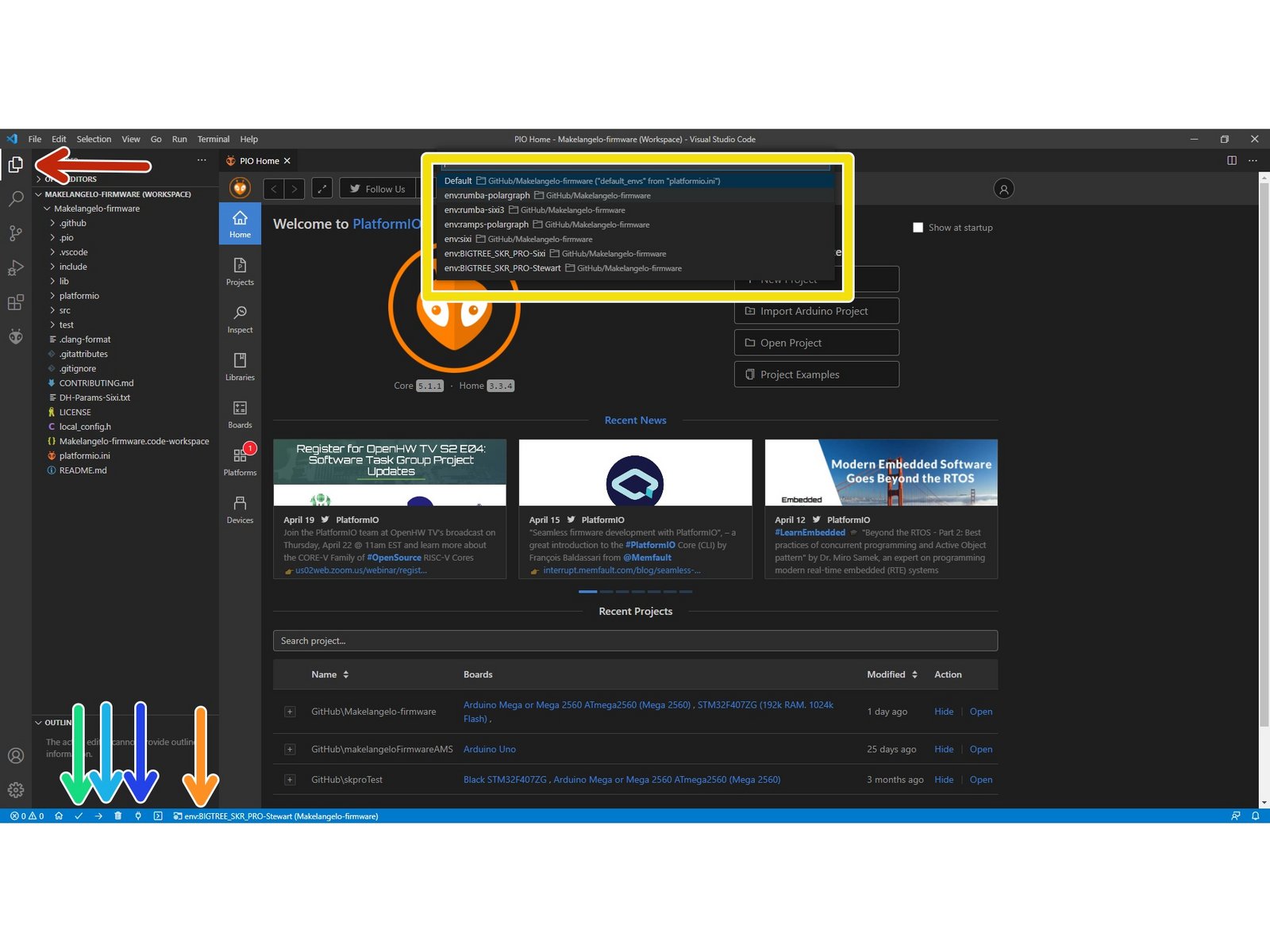
Makelangelo robots store some important numbers in EEPROM such as machine size. New machines have all values at zero. Old machines getting a firmware upgrade may have outdated numbers.
To set these numbers to factory default values, connect to your robot through the serial monitor and send M502, factory reset.
You can verify the new numbers with M503, report all settings.
Step 6 Firmware update via SD card
Some custom boards (such as STM32* type) must be updated by copying firmware to an SD card. If you're reading this, come to Discord and tell me to finish this section.